Install Xcode on Windows
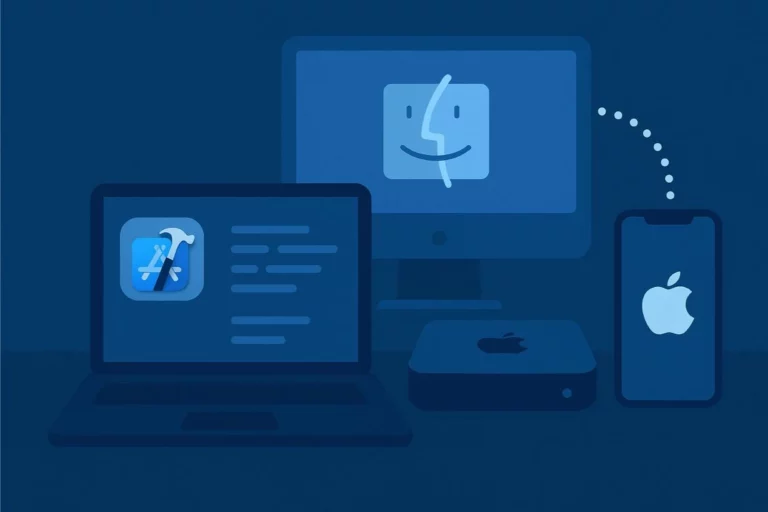
Xcode is Apple’s official integrated development environment (IDE) used for building applications for iOS, iPadOS, macOS, watchOS, and tvOS. It provides all the essential tools developers need, including a code editor, debugger, simulator, and full integration with Apple’s SDKs to ensure apps meet Apple’s standards.
The main challenge for Windows users is that Xcode only runs on macOS, meaning it cannot be installed natively on a Windows PC. Without access to macOS, developing iOS applications becomes impossible because Xcode is required for code signing, building projects, and submitting apps to the App Store.
However, by using a Cloud Mac service, Windows users can access a real macOS environment remotely. Cloud Mac allows users to log into a Mac hosted in secure data centers via an internet connection. Once connected, users can:
Install Xcode and other development tools such as Swift, CocoaPods, and Homebrew.
Build and test iOS applications using the iOS Simulator without owning a physical Mac.
Store projects in the macOS environment or transfer them to a Windows computer via cloud storage.
Complete all critical processes like code signing, provisioning profiles, and App Store submission.
Using Cloud Mac also provides several advantages for Windows users:
Cost-Effective: No need to purchase an expensive Mac; you only pay for the duration of Cloud Mac usage.
Flexible Access: Ideal for students, freelance developers, or development teams who need temporary access to macOS.
Real Mac Environment: Functions exactly like a physical Mac, eliminating compatibility issues or missing features.
This approach allows Windows users to learn and develop iOS apps fully without owning a Mac, making it easy and flexible to practice Swift, use Xcode, and manage the entire App Store workflow.
Step-by-Step Guide: Install Xcode on Windows Using Cloud Mac
Even though Xcode only runs on macOS, Windows users can remotely access a real Mac using a Cloud Mac service. Follow these steps to start developing iOS apps from your Windows PC:
Step 1: Choose a Cloud Mac Provider
There are several Cloud Mac services available, such as MacinCloud, MacStadium, or Casbay. When choosing a provider, consider:
Pricing: Hourly, daily, or monthly plans.
Mac Hardware Specs: RAM, CPU, and storage.
Access Method: Remote desktop client (RDP) or browser-based access.
Location of Data Center: Closer servers usually give faster connection.
Step 2: Create an Account & Subscription
Sign up on the Cloud Mac website.
Choose a plan that fits your needs (e.g., hourly for learning, monthly for development projects).
Verify your account and payment details.
Step 3: Connect to Your Cloud Mac
Depending on the provider, you can connect via:
Web Browser: Access macOS directly in your browser (simpler, no software installation).
Remote Desktop Client (RDP): Install Microsoft Remote Desktop on Windows, then connect to the Mac using credentials provided by the service.
Step 4: Set Up Your macOS Environment
Once connected:
Check that macOS is updated to the latest compatible version.
Open App Store and sign in with your Apple ID.
Download and install Xcode (latest version recommended).
Optional setup:
Install Homebrew for easier package management.
Install CocoaPods if your projects require third-party libraries.
Step 5: Start Using Xcode
After installation:
Open Xcode and create a new project.
Explore the iOS Simulator to test your apps.
Develop and run apps as if you were using a physical Mac.
Tips for beginners:
Start with a simple Hello World app to get familiar with Xcode.
Explore Swift Playgrounds for learning Swift coding.
Save projects regularly and consider syncing them to iCloud or GitHub for backup.
Step 6: Build & Submit Your App
To prepare your app for the App Store:
Configure provisioning profiles and certificates in Xcode.
Build the app and test thoroughly using the iOS Simulator.
Submit the app directly to the App Store from Xcode.
Using a Cloud Mac ensures that all App Store requirements are met, since the build and code signing process happens on a real macOS system.
Step 7: Optional Tips for Smooth Workflow
Use keyboard shortcuts for macOS while on Windows (e.g., Command ⌘ = Ctrl).
Keep a note of your Cloud Mac login for quick access.
Upgrade your plan if you need more CPU/RAM for larger projects.
Close unnecessary apps to save bandwidth and improve performance.
Copyright © 2025 WLF Digital Solutions LTD.
All rights reserved. Please review our Terms
Apple, macOS, Mac OS X, iOS, watchOS, tvOS,
Xcode, Mac, and the Mac logo are trademarks of
Apple Inc., registered in the U.S. and other
countries.